Selling shares on the Nepal Stock Exchange (NEPSE) has become significantly more streamlined with the rapid digitalization of the capital market. However, executing a sell order on your Broker’s Trade Management System (TMS) is only half the battle. To successfully complete the transaction and receive your payout, you must know How to Transfer Shares Using Mero Share EDIS. EDIS, which stands for Electronic Instruction Slip, is a digital facility provided by CDS and Clearing Limited (CDSC) that allows investors to transfer sold shares from their Demat account directly to the clearing broker without physically visiting a broker’s office or filling out paper booklets.
Failing to transfer your shares within the stipulated timeframe set by CDSC can lead to severe financial consequences, including a mandatory 20% penalty on the total transaction value. Whether you are a beginner trading for the first time or an experienced investor looking to refresh your understanding of updated settlement rules, this comprehensive guide covers everything you need to know about navigating the Mero Share portal, calculating WACC, updating purchase sources, and executing error-free share transfers electronically.
Understanding the Prerequisites: My Purchase Source and WACC
Before you can initiate the electronic transfer through EDIS, you must complete two critical preliminary steps inside the Mero Share portal: updating My Purchase Source and calculating WACC (Weighted Average Cost of Capital). Skipping these prerequisites will prevent your sold shares from appearing in the EDIS transfer tab.
1. Updating My Purchase Source
When you acquire shares through Initial Public Offerings (IPOs), Rights Issues, Bonus Shares, or Secondary Market purchases, CDSC requires you to verify the buy price. This verification forms the accounting baseline for tax calculations. To update your source:
- Log into your Mero Share account using your Depository Participant (DP), Username, and Password.
- Navigate to the left-side dashboard menu and click on “My Purchase Source”.
- Search for the script name of the stock you recently sold on the TMS.
- Select the appropriate purchase records, tick the check boxes, and click “Proceed” to update the system.
2. Calculating and Declaring WACC
In Nepal’s secondary market, Capital Gains Tax (CGT) is determined based on your holding period and the cost price of your shares. Calculating your WACC ensures that the Internal Revenue Department (IRD) charges the correct tax rate (for example, 5% for individual holdings over 365 days and 7.5% for individual holdings under 365 days).
Once you update the purchase source, click on the “My WACC” sub-menu, select the specific company stock, calculate the average buying cost, and submit your self-declaration. Only after your WACC is successfully updated and confirmed will the system release those specific quantities into your EDIS module for final settlement.
Step-by-Step Guide: How to Transfer Shares Using Mero Share EDIS
Once your WACC and purchase sources are updated, you are fully prepared to transfer your shares to your stock broker. Follow this structured step-by-step process to complete your EDIS instruction successfully.
Step 1: Access the “My EDIS” Section
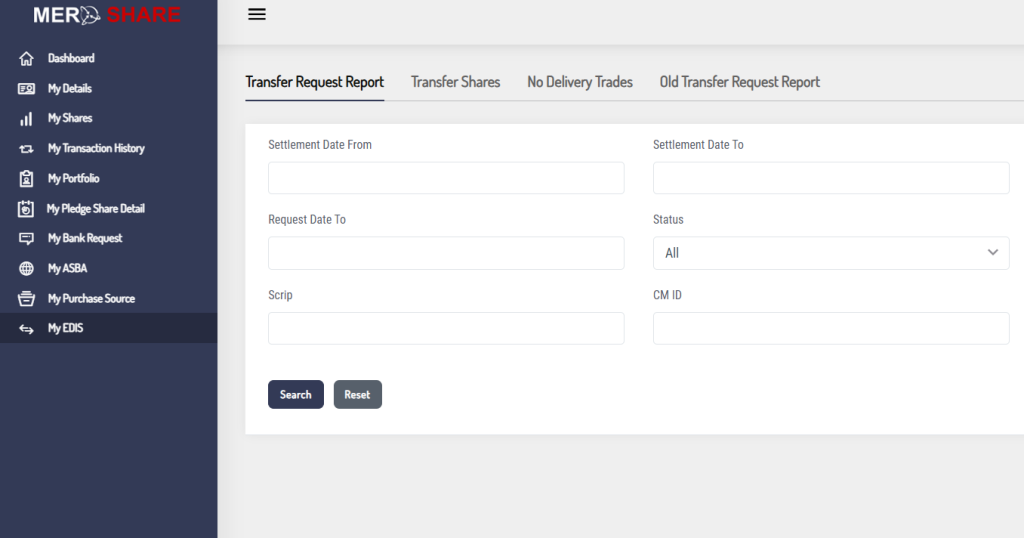
Log in to your Mero Share web portal or mobile application. From the main navigation menu on the left panel, click on “My EDIS”. This section serves as your digital hub for managing share instructions, viewing settlement details, and reviewing transfer history.
Step 2: Navigate to “Transfer Shares”
Inside the EDIS tab, you will see multiple sub-headings such as Transfer Shares, No Demand Quantity, and Import Settlement. Click on “Transfer Shares”. If your sell order was successfully processed by your broker on NEPSE, you will see a list of settlement IDs corresponding to your transaction.
Step 3: Select the Settlement / Contract ID
Locate the specific transaction row that displays the script name, quantity sold, and settlement date. Click on the check box next to the appropriate Settlement ID or trade record. The system will then display detailed transaction parameters, including your buying price, current sale price, and total net share quantity.
Step 4: Verify Holding Days and Tax Rates
Review the holding period auto-generated by the system. The platform will classify your holding duration as either short-term (less than or equal to 365 days) or long-term (more than 365 days). Make sure the classification accurately reflects your holding history, as this dictates your CGT deduction upon settlement payout.
Step 5: Confirm and Submit the Electronic Instruction Slip
After thoroughly verifying all transaction figures and quantities, click the “Proceed” button. A pop-up declaration box will appear detailing the total shares being debited from your Demat account. Read the terms, tick the agreement box, and click “Submit”. A green confirmation banner will appear on your screen, indicating that your EDIS request has been successfully transmitted to your broker and CDSC.
Crucial Timelines, Settlement Rules, and Avoiding the 20% Fine
Timing is everything in equity market settlements. The Nepal Stock Exchange operates under a T+2 settlement cycle, meaning cash payout and stock delivery should finalize within two working days of the transaction. However, for investors using EDIS, the deadline to issue share instructions is strictly enforced on a T+1 schedule.
Investors must complete their EDIS share transfer before 5:00 PM on the day following the sell trade (T+1). If you sell shares on Sunday, you must finalize WACC and execute EDIS before 5:00 PM on Monday.
What happens if you fail to transfer on time?
If you fail to send the shares via EDIS within the T+1 deadline, your trade falls into the Closeout / Buy-In system. Under CDSC guidelines, the system treats this as a settlement default. You will be penalized with a non-negotiable 20% fine based on the total monetary value of the uncollected trade. This penalty is directly deducted from your future trade revenues or collected through your clearing broker.
Summary Table: Key Takeaways for Mero Share EDIS
| Process Phase | Primary Task | Strict Deadline / Requirement |
|---|---|---|
| Phase 1: Purchase Verification | Update “My Purchase Source” | Must be done immediately after selling shares. |
| Phase 2: Cost Calculation | Calculate & Declare “My WACC” | Determines holding period (CGT rate: 5% vs 7.5%). |
| Phase 3: Stock Transfer | Execute EDIS via “Transfer Shares” | Must submit electronically via Mero Share. |
| Phase 4: Settlement Compliance | Finalize Entire Procedure | T+1 day before 5:00 PM to avoid a 20% fine. |
Frequently Asked Questions (FAQ)
What should I do if my sold shares do not appear in the “Transfer Shares” section?
If your sold shares do not show up under the “Transfer Shares” tab in EDIS, ensure that you have completed both “My Purchase Source” and “My WACC” updates for that script. If WACC is completed and the issue persists, your broker may not have imported the settlement details yet. Wait a few hours or contact your broker’s settlement department directly before the 5:00 PM T+1 cutoff.
Can I perform share transfers using the Mero Share Mobile App?
Yes, CDSC has integrated complete EDIS functionality into the official Mero Share mobile application. You can easily update your Purchase Source, confirm WACC, and execute EDIS share transfers directly through your smartphone using the same workflow found on the web portal.
Is it possible to reverse or cancel an EDIS instruction after submission?
No, once an EDIS transfer request is submitted and confirmed in Mero Share, it cannot be canceled or modified by the investor. The instruction immediately locks the specified share quantity in your Demat account for transfer to the buyer’s broker. Always review transaction details carefully before hitting the final submit button.
Conclusion
Mastering How to Transfer Shares Using Mero Share EDIS is essential for anyone active in Nepal’s equity market. By keeping your purchase sources updated and executing your EDIS transfers well before the T+1 deadline, you safeguard your investments against costly 20% closeout fines and ensure seamless payouts from your broker.
Always make it a habit to log into Mero Share immediately after executing a sell order on your broker’s TMS. Complete your WACC calculations early, double-check your settlement details, and trade with confidence. If you frequently trade in secondary markets, set reminders for trade settlements to ensure your portfolio stays organized and fully compliant.